|
|
PC Screen
|
|
Mobile Screen
|
Starting:
To start transmitting information, click on the
"transmit" button at the top. You may receive a security warning
asking if you want to run the software. This occurs because in order to
transmit the file, the software needs to read the file from your hard-drive.
You will then be prompted to select a file to transmit, which can be any type
of file. The software will then encode the information and prepare it for
transmission.
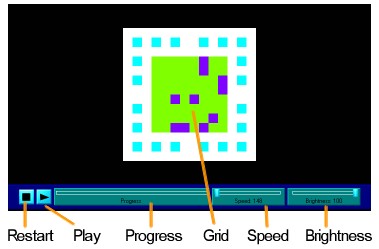
The transmission window will appear next, and should look
similar to the image above on the left. The central portion containing the
coloured squares is known as the grid. Below it is the control panel. The two
main choices that you will need to make are the speed at which to transmit and
the brightness level.
Selecting a speed:
To choose the transmission speed move the slider in the speed
setting box. The higher the speed the more
errors are likely to appear. The software will correct some errors, however if
too many errors are encountered you will have to resend the file at a lower
speed. The software on your phone will guide you after it receives a file by
giving you an error rate. See below on using this number.
Selecting the brightness:
In general, the brightness setting should be at it's maximum
level (100) in order to minimise the amount of glare (see below). For some
monitors however this will cause black bars to appear in the image.
Problems with black bars in the image:
One of the problems that is commonly encountered when taking
pictures of a monitor screen is a series of black bars which seem to run up
and down the image. This makes the grid unreadable and you will be unable to
transfer information reliably in this situation. To overcome this, try
decreasing the brightness of the display. This fools the camera into taking
longer images which reduces the effect. Black bars are mainly a problem on CRT
monitors rather than LCD displays.
Glare:
Glare refers to light reflecting off the screen you are looking at.
For example, the image below was taken looking at TV that was turned off. It
should be completely black however you can see that the reflection of the
window is clearly visible.
|

|
|
Glare: This is an image of a TV screen which
is turned off. |
In order for the phone to correctly read the image, the background of the
grid needs to be as black as possible. In order to remove the effect of glare
there are a number of things you can try. Firstly try adjusting the cameras
position relative to the screen and change the angle so that you don't get any
reflections. Repositioning the screen you are looking at or turning up it's
brightness will help. As a last resort you may need to remove any sources of
glare by turning off lights or shutting curtains.
Transmitting:
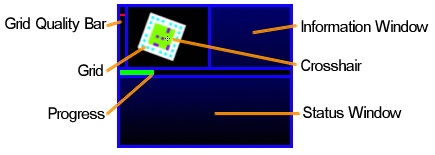
At this stage you need to start ScreenFTP running on your phone.
Look for the ScreenFTP icon and run it. You should see a window similar to the
one at the top of this page on the right, except that it will have writing in the status and
information windows. In the preview window you will see whatever the camera is
pointed at.
In order for the phone to read the information correctly, you
need to make sure that all of the grid is visible in the preview window. For
example, in the image below on the left the entire grid is visible and the
grid can be decoded correctly. In the image on the right however, the top left
corner of the grid is not visible and the phone would not be able to decode it
|

|

|
|
Good: The entire grid is visible |
Bad: The top left corner of the grid is not
visible |
As well as the entire grid being visible, you also need to
make sure that the crosshair (in the center of the preview window) is over the
grid. For example in the image below on the right the crosshair is not over
the grid so the image can not be read.
|

|

|
|
Good: The crosshair is over the grid |
Bad: The crosshair is outside the grid |
If you follow the above steps the phone should decode the header grid (the
first grid displayed). The information window will then display information
about the data to be transmitted. The grid dimensions (width and height) are
displayed, as is the speed (in bytes per second). The estimated total time
that the data will take to be transmitted (in seconds) is also displayed. If
this does not happen then you may have problems with glare or black bars - see
above.
Now that the header grid has been read, press the play button and the grid
will start transmitting the data automatically. Note that the same conditions
as above apply, for example the grid needs to be fully visible and the crosshair needs
to be over it. There is a red bar on the left of the screen which gives you
some idea of the quality of the grid. The higher the better. If the bar drops
below half-way then a frame may be missed and the data may not be able to be
decoded correctly.
Note that the optimum distance from the screen is around 30cm. Below this
you will notice that the grid quality is too low. This is due to the camera
being unable to focus at short distances. Too far from the screen and the grid
is too small on the screen.
Decoding:
As the phone reads the grid the progress bar fills up. When it reaches the
end you will get a message in the status window saying that the phone is
decoding the information. At this stage you no longer need to point the camera
at the grid. The progress bar now indicates the decoding progress. If there
were a lot of errors during the transmission (for example due to glare or too high a
transfer rate) the decoding may fail in which case you should reduce your
speed settings (not available in the demo version) and try again.
Error rate:
When the decoding is done the file is sent to your inbox. The status window
will tell you the error rate for that transmission. This is a figure which
ranges from 0 to 100 percent, and indicates how many errors were encountered.
If it goes above 100% then the transmission would have failed. You can use
this number to adjust your speed settings for the next transmission. For
example, if
you had an error rate below 40% you could try increasing your speed slightly,
and if you had an error rate above 70% then you might consider decreasing your
speed.
Finishing:
Now the file should be sitting in your phone's inbox. Some files will
automatically be displayed (text, images, software), while others will not.
Either way the file is attached to the message and you can still send it on to
another device - regardless of whether or not your phone has the ability to
process it.
Enjoy!
|